Adding a Clinical History Note
To add a Clinical History note:
- Search for and select the patient.
- Select the Clinical tab.
- Under Clinical History, select Add.

The Clinical Notes window appears. For more information, see Clinical Notes Window Overview. - From the Type dropdown, select the type of clinical note being added.
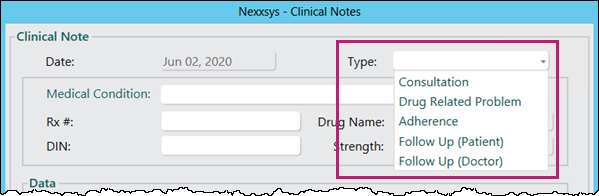
- This is the only mandatory field.
- Enter any additional information following the DAP (Data Assessment Plan) format.
- Select OK. The Clinical Notes window closes.
- Select Save.
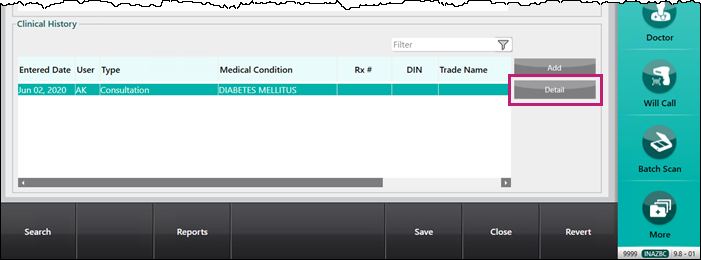
Once a Clinical Note is saved to the Clinical tab, it can be opened in a read-only mode by selecting the Clinical Note and selecting Detail.
Next Steps
If a Patient Follow Up or Doctor Follow Up date was selected, an Activity is created in the Workbench > Activities Dashboard and should be actioned appropriately.
For more information see, Completing Activities.